
Last updated: 2026-11-10
Core Feature Modules
A page-by-page guide to ximu: tracking, insights, Agent, products, and API keys.
Overview
Start here. Overview answers one question: how is my brand doing in AI answers, and is it getting better or worse?
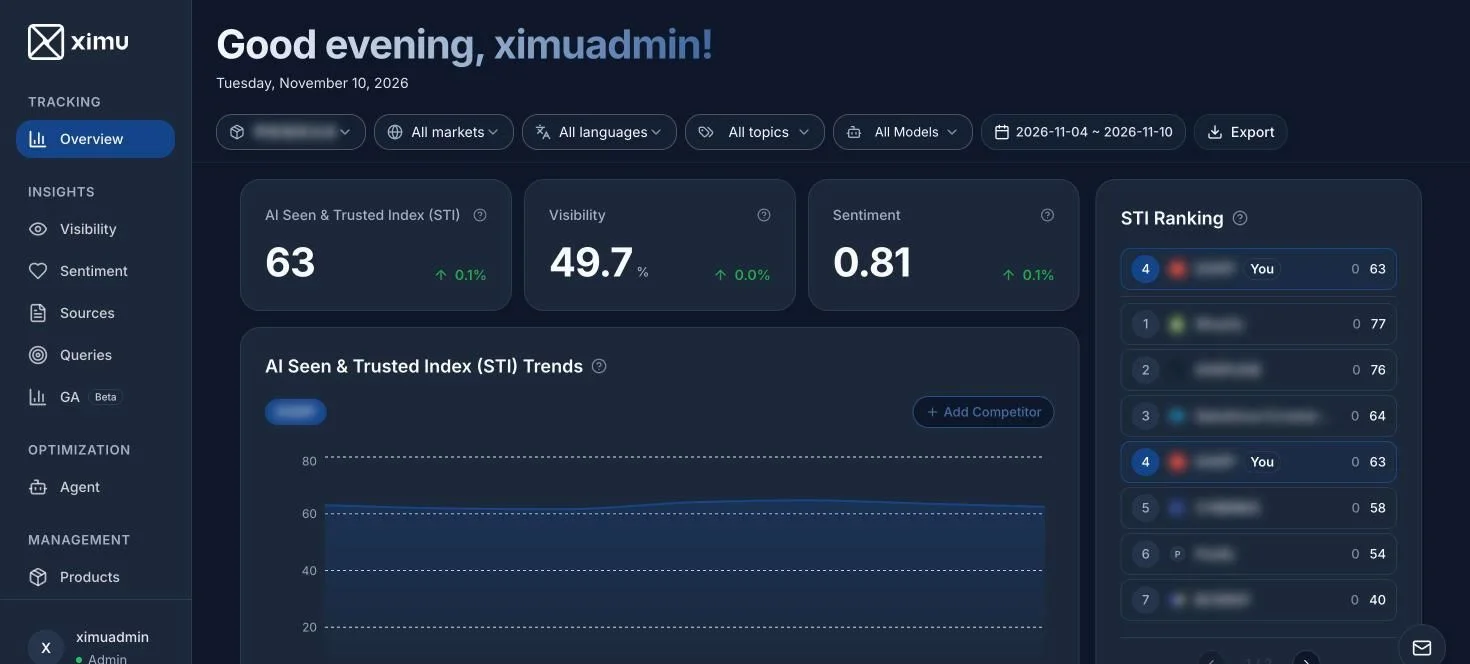
Summary cards
Each card also shows its change against the previous period.
- AI Seen & Trusted Index (STI): The headline score, from 0 to 100. It combines visibility and sentiment into your overall influence in AI answers. Higher is better.
- Visibility: How visible your brand is in AI answers, as a percentage. Higher means AI mentions you more often.
- Sentiment: The average tone AI uses about your brand, from 0 (negative) to 1 (positive), where 0.5 is neutral. Closer to 1 is better.
STI trends
The chart plots your daily STI. Click "Add Competitor" to put a competitor on the same chart and compare how you both move.
STI ranking
Ranks your brand, pinned and marked "You", against competitors by STI. The table is paginated.
Top Sources and Top Topics
- Top Sources: The websites AI cites most, with their share and whether your brand is mentioned or not mentioned there. Click View detail for more.
- Top Topics: The topics most tied to your brand, with their share. Click View detail for more.
Visibility
Measures how visible your brand is in AI searches, through mention rate, mention order, and content share.
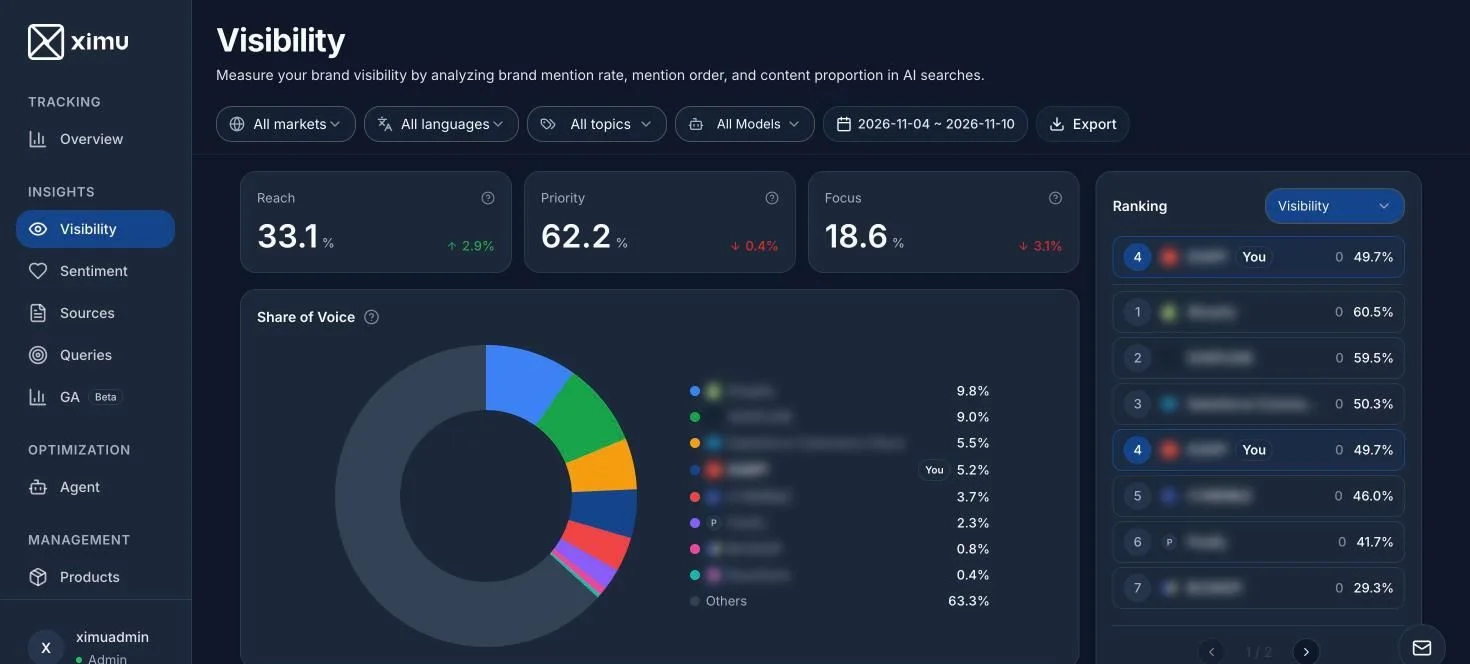
Metric cards
Three cards, each with its change over the period:
- Reach: How often AI answers mention your brand. Higher means more exposure.
- Priority: How prominently your brand is mentioned. Higher means closer to AI's first-choice answer.
- Focus: The share of an answer devoted to your brand when it is mentioned. Higher means a stronger presence.
Share of Voice
A donut chart of each brand's share of voice, including an Others slice.
Trends and ranking
The Trends chart follows your brand over time. Click "Add Competitor" to compare. The Ranking table ranks brands by the metric you choose in its dropdown, starting with Visibility.
Sentiment
Shows the tone AI uses when it talks about your brand, and which kinds of sources shape it.
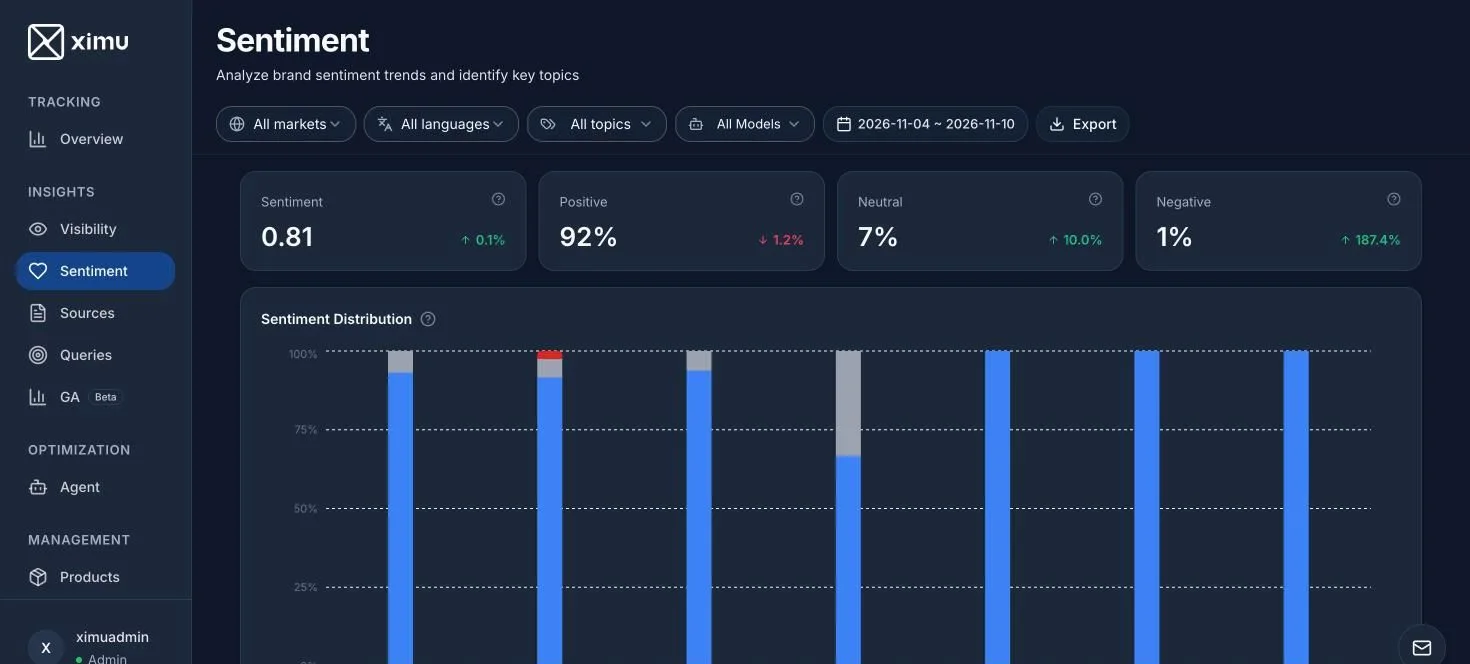
Sentiment cards
- Sentiment score: The average tone, from 0 (negative) to 1 (positive). 0.5 is neutral, and closer to 1 is better.
- Positive, Neutral, Negative: The percentage of responses in each tone.
Sentiment Distribution
Stacked bars by source type: Official, News, Business Profiles, Review, Knowledge, Media, and Others. They show which types of source carry a positive or negative tone about you.
Sentiment Keywords
Shows the words AI uses about brands. Choose Own, Competitors, or All. Switch between Cloud view and Tidy view, filter by Positive or Negative, and use Reset view to start over.
Sources
Shows which websites AI cites when it answers, and whether they mention you. This is the most useful page for planning content and PR.
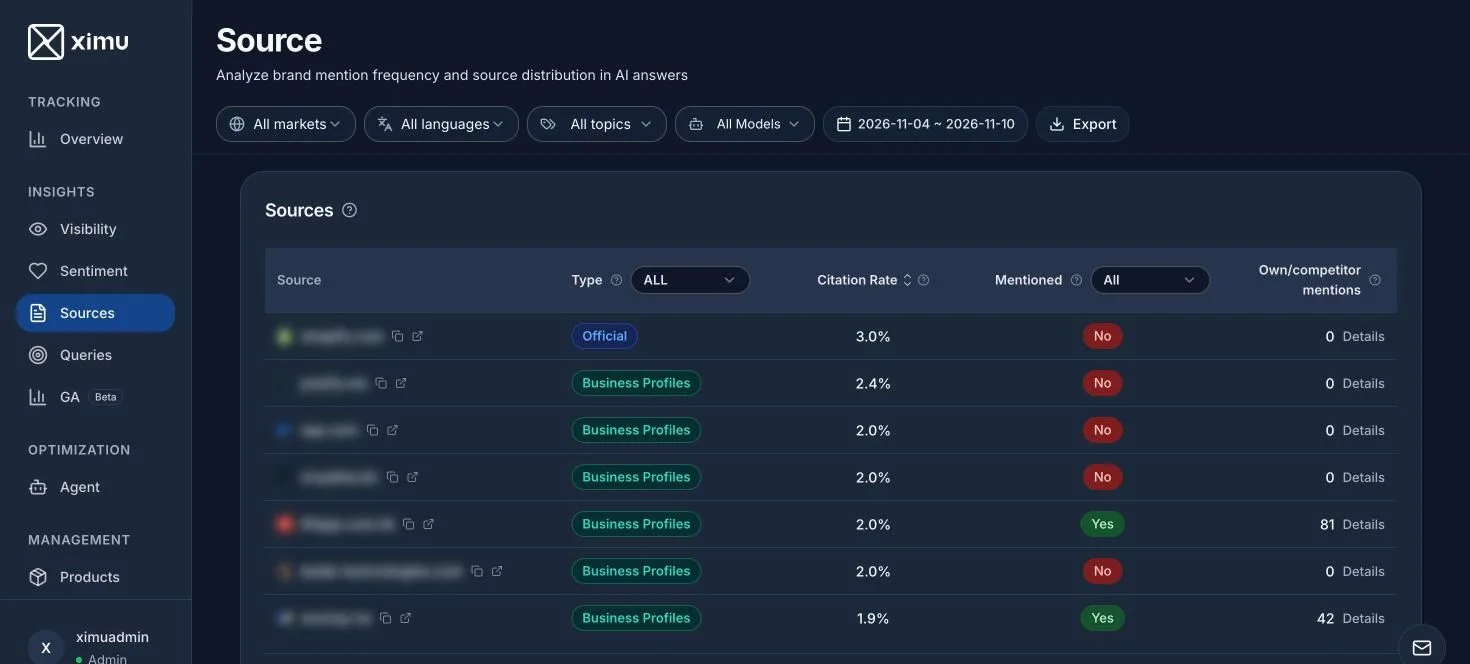
Source table columns
- Source: The cited website. Use the icons to copy or open the link.
- Type: The source category, such as Official or Business Profiles. Filterable.
- Citation Rate: How often AI cites the site. Click the header to sort.
- Mentioned: Whether the source mentions your brand (Yes or No). Filterable.
- Own / competitor mentions: How many times your brand and your competitors are mentioned on that source.
- Details: Opens more detail for that source.
Queries
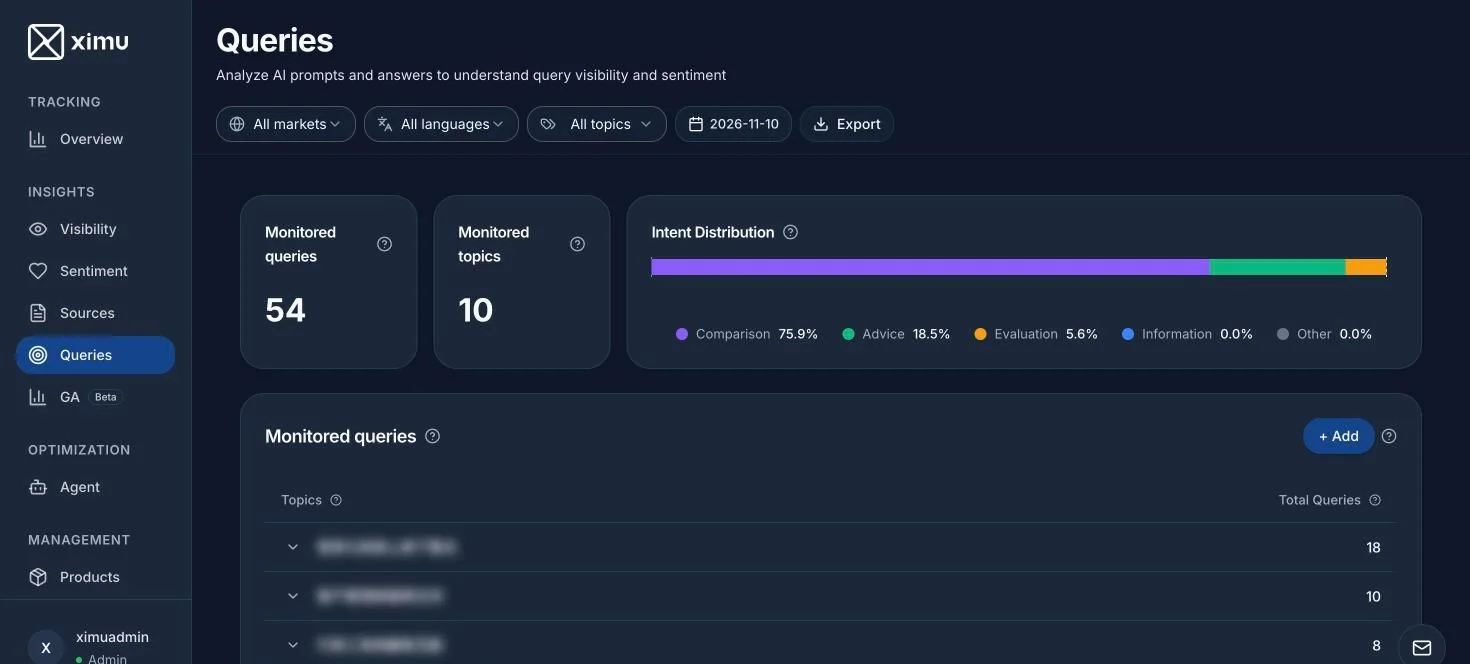
Shows the queries ximu monitors and the real answers AI gives, which is closest to what users actually see.
Summary cards
- Monitored queries: The number of queries being monitored.
- Monitored topics: The number of topics those queries cover.
- Intent Distribution: The share of each intent type: Comparison, Advice, Evaluation, Information, and Other.
Monitored queries table
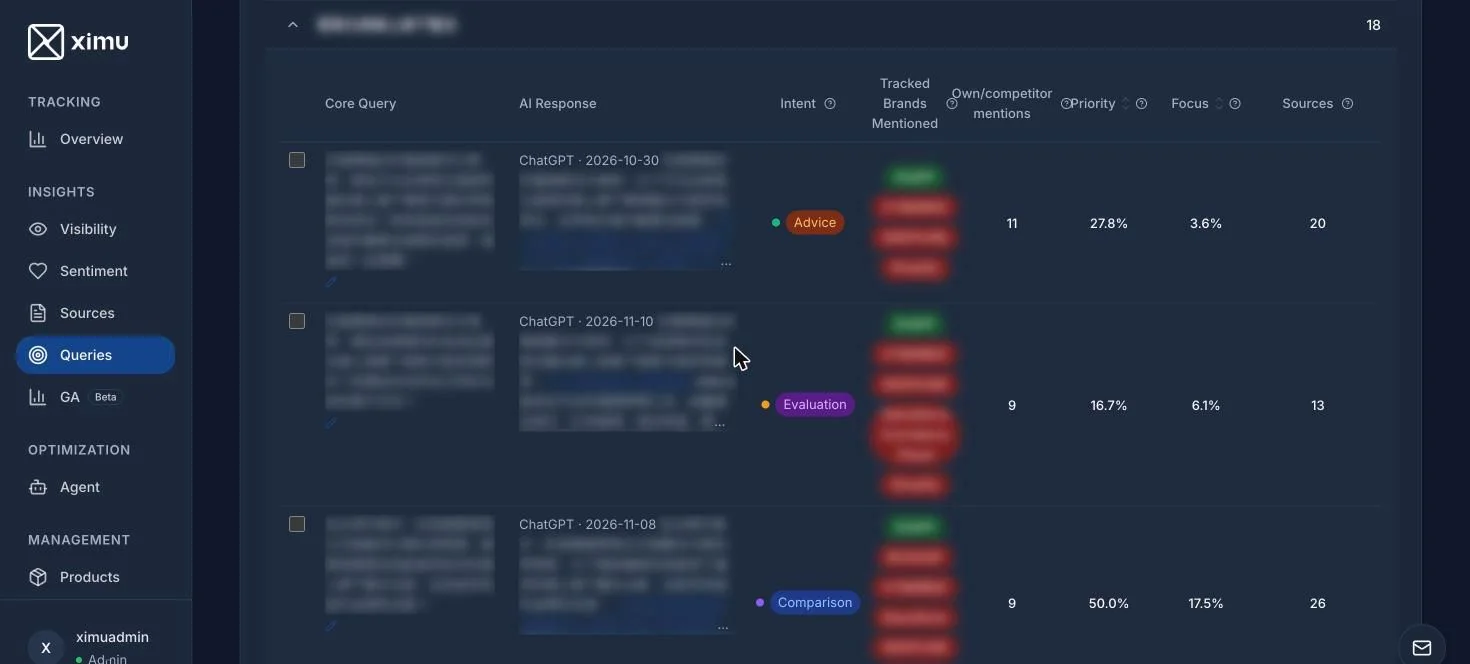
Queries are grouped by topic, with Total Queries for each topic. Use + Add to add a query. Expand a topic to read each query and the AI answer to it:
- Core Query: The query itself. Click the pencil to edit it.
- AI Response: The AI's answer, with the model and date.
- Intent: The intent category of the query.
- Tracked Brands Mentioned: Which tracked brands the answer mentions.
- Own / competitor mentions: How many times your brand and your competitors are mentioned in the answer.
- Priority: How prominently your brand is mentioned. Sortable.
- Focus: Your brand's share of the answer. Sortable.
- Sources: The websites AI cited in that answer.
GA analysis (Beta)Beta
Connect Google Analytics 4 to see how much of your website traffic comes from AI products.
Set up in four steps
- Authorize: Grant read-only Google authorization. ximu does not change your website or your GA4 settings. You can Re-authorize, Refresh status, or Disconnect at any time.
- Choose a GA4 property: Pick the property you want to analyze and save.
- Choose business goals: Select up to 5 events, such as sign_up, generate_lead, or book_demo_submit. Selecting an event does not install tracking or change your GA4 key events.
- Data check: Review the last 28 days, including today. If an event shows no data, that does not necessarily mean tracking is broken.
AI traffic analysis
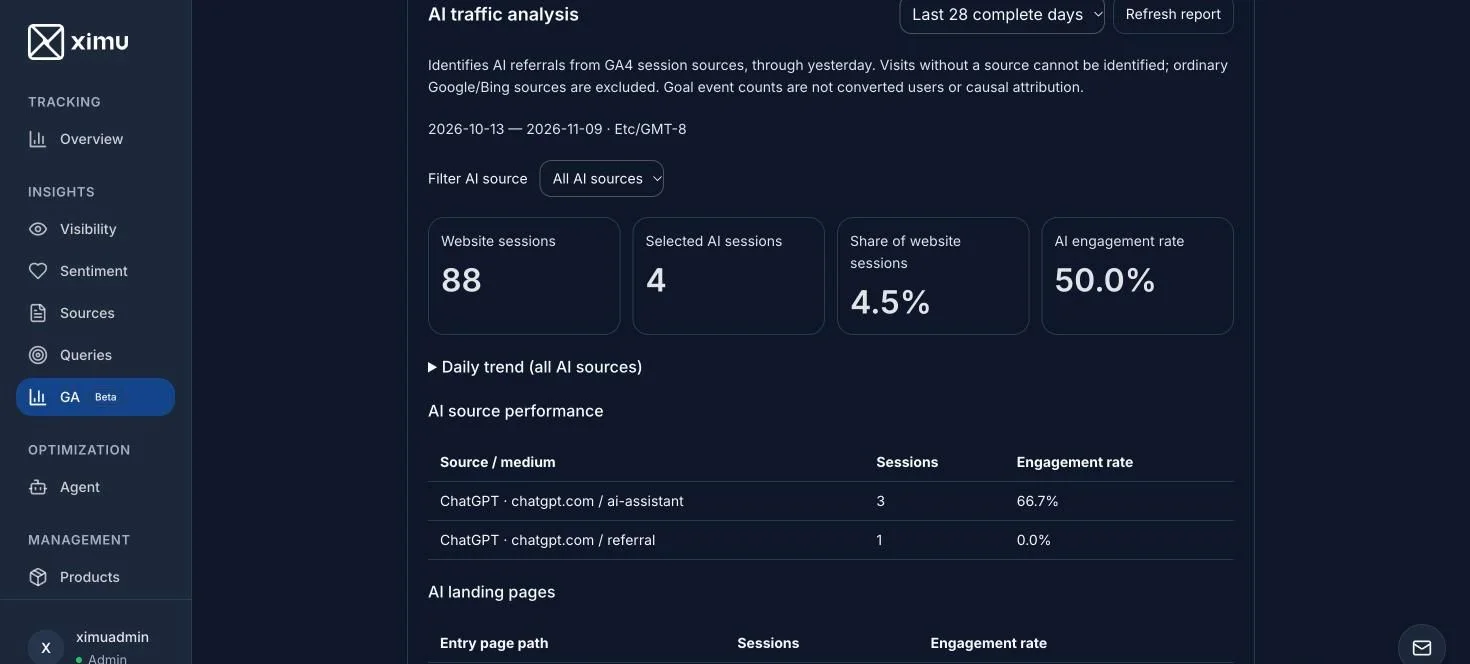
Choose the last 7, 28, or 90 complete days, then click Refresh report. ximu identifies AI referrals from the GA4 session source, through yesterday.
- Filter: Filter the report by AI source.
- Cards: Website sessions, Selected AI sessions, Share of website sessions, and AI engagement rate.
- Charts and tables: A daily trend, AI source performance (source and medium, sessions, engagement rate), AI landing pages, and goal events in AI sessions.
What the numbers do not tell you
- Visits that arrive without a source cannot be identified as AI traffic. Ordinary Google and Bing sources are excluded.
- Goal event counts are not converted users, and they are not causal attribution.
Agent
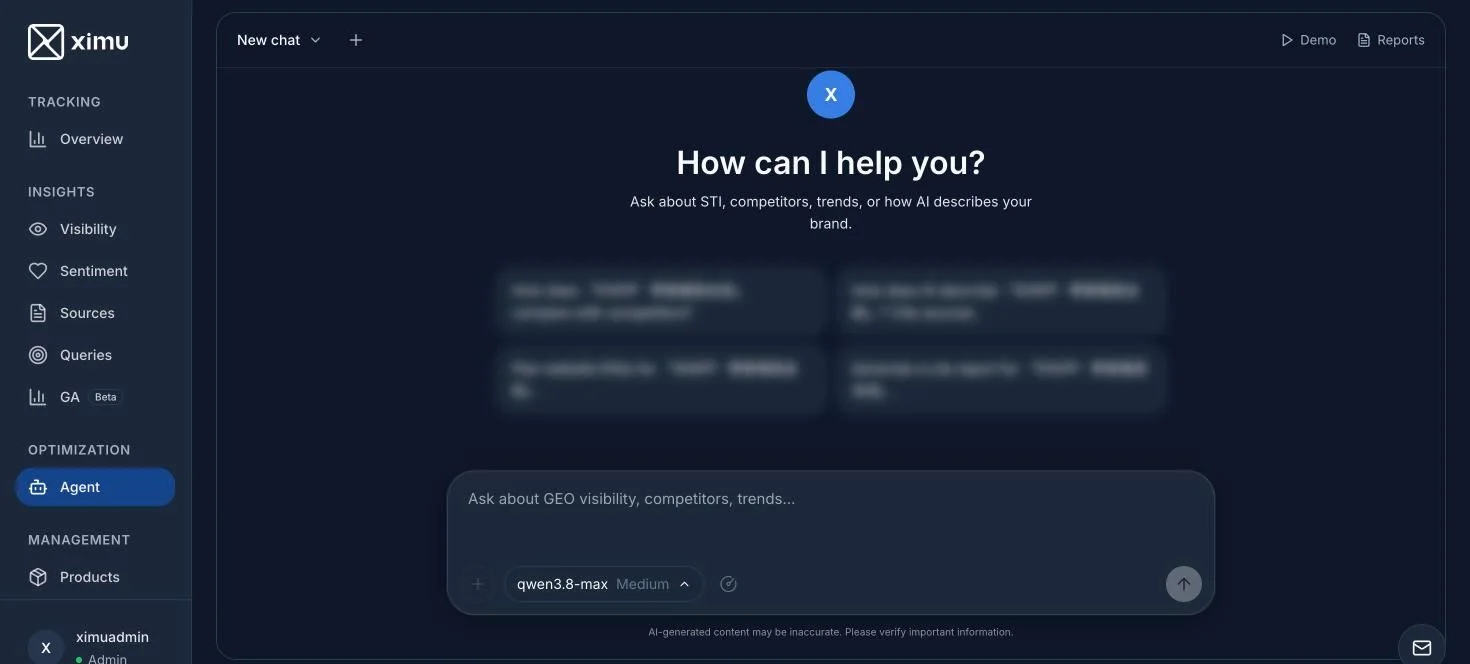
Agent is where you discuss your data and optimization plans and generate reports. Chat and reports now all live here.
Chat
- Ask: Ask about your STI, competitors, trends, or how AI describes your brand. Suggestions on the page include comparing with competitors, showing how AI describes your brand with citations, planning website FAQs, and generating a Lite report.
- Conversations: Click + to start a new chat. The New chat dropdown lists your conversation history.
- Check the answer: Agent reminds you that AI-generated content may be inaccurate. Verify anything important.
Model and effort
Use the model selector to choose Low, Medium, or High effort.
Demo
Open the Demo menu to see sample I.Q. Lite reports, one basic and one deep, so you know what a report looks like.
Reports and folders
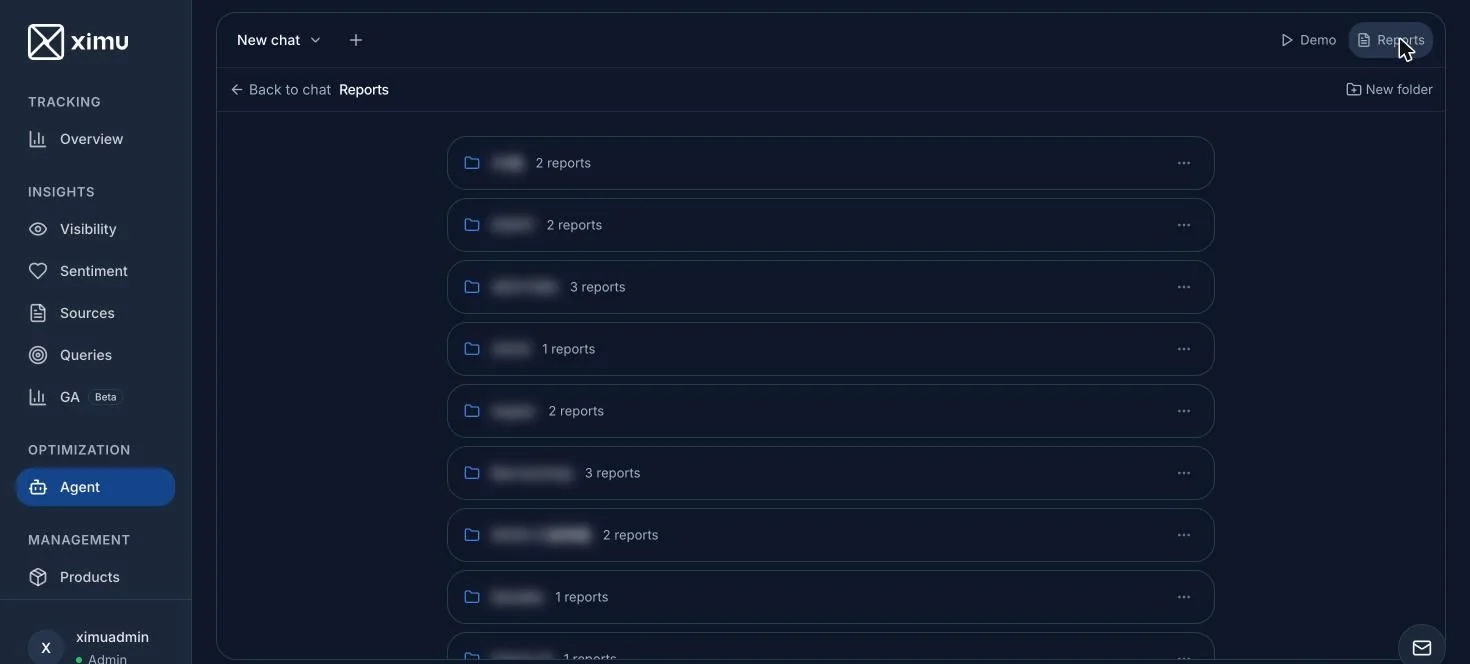
Open the Reports view to find your saved reports. Reports are kept in folders: click New folder to create one. Click Back to chat to return to the conversation.
Credits
Agent uses Credits. Your balance is on the Manage subscription page, where this feature is listed as Copilot.
- I.Q. Lite report: 80 Credits per report.
- Chat: About 0.33 Credits per message.
- Credit value: 1 Credit equals 10,000 tokens.
- Queries: Adding or editing a query with + Add costs 6 Credits each time within your plan's default limit, and 10 Credits each time above it. This includes daily update maintenance.
- Monthly reset: Unused Credits reset every month and do not roll over. Elite includes 100 Credits a month and Pro includes 300.
Products
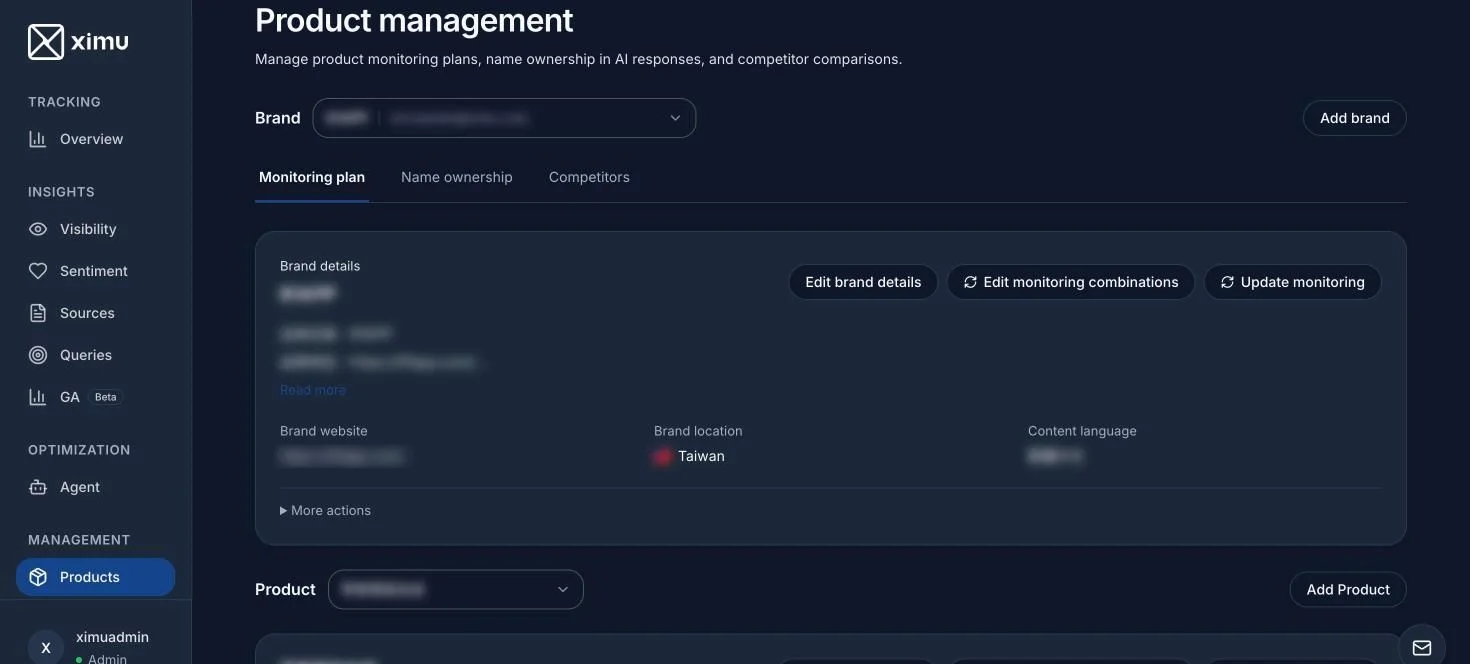
Products is where you tell ximu what to monitor. It has three tabs. Use the brand selector at the top to switch brands, or Add brand to add one.
Monitoring plan
- Brand details: Click Edit brand details to change the website, location, and content language.
- Monitoring combinations: Click Edit monitoring combinations to change the plan. Update monitoring sits on the same tab. The plan shows how many combinations it has and which markets, query languages, topics, platforms, and compared competitors it covers.
- Products: Use the product selector to switch product, Add Product to add one, and Edit product details to change one.
Name ownership
AI answers often use different names for the same brand. Name ownership maps each name found in AI answers to the right brand, so your numbers count the right mentions.
- Counts: The tab shows how many names are Confirmed and how many are Pending. You can filter by owner.
- Table: Each row shows the original name and its owner brand, tagged as own or competitor. Use Edit ownership to change the owner, Undo confirm to reverse a confirmation, and Add name to add a name yourself.
Competitors
Turn comparison on or off for each competitor with its toggle. Each row shows how many names are linked to that competitor.
API Keys and integrations
Create keys to read your ximu data from your own tools, scripts, or AI assistants. API Keys is under Management.
Key fields
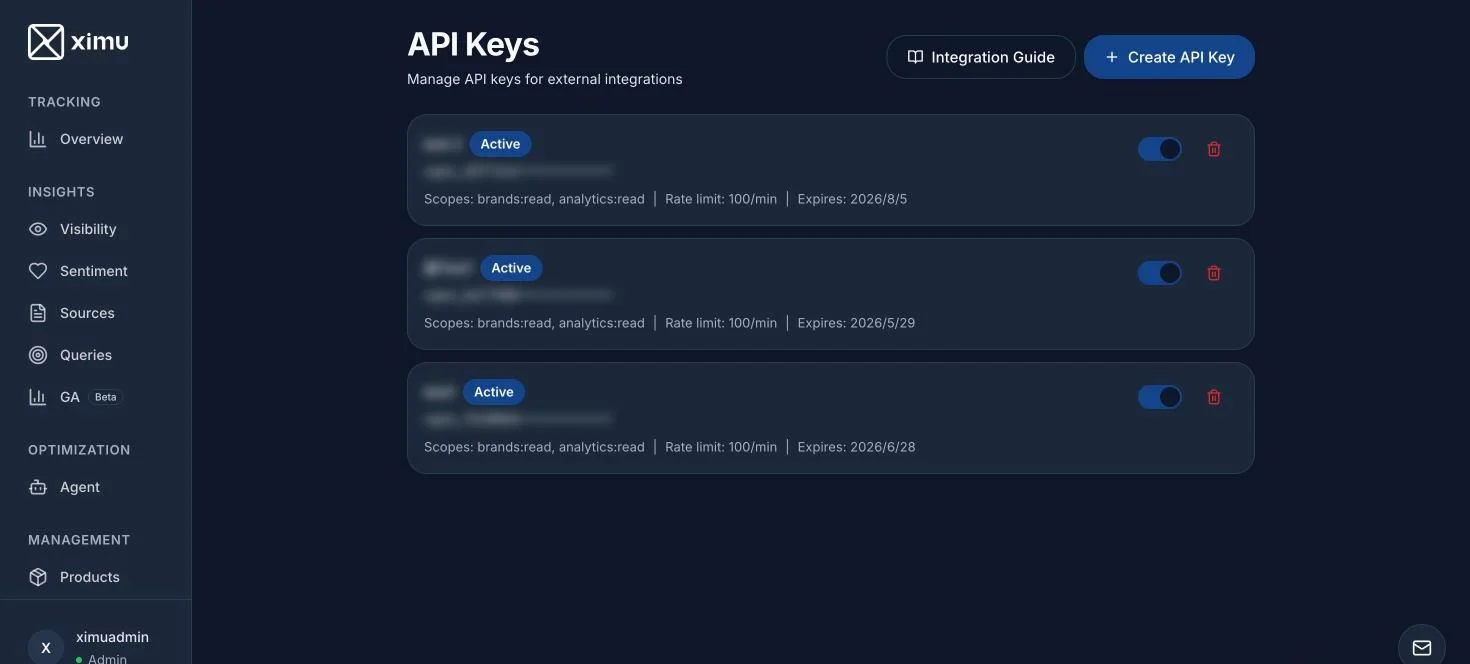
Each key shows its name, an Active status, the key prefix (xgeo_), its scopes, its rate limit, and its expiry date. Use the toggle to switch a key on or off, and the delete button to remove it.
Click Create API Key to make a new one. The full key is shown only once, when you create it. Save it right away.
Scopes and rate limit
- brands:read: Read your brands and their products.
- analytics:read: Read Overview, Visibility, Sentiment, Sources, and Intent data, plus the summary and chat.
- Rate limit: 100 requests per minute, shown on each key.
Connect
- Base URL: https://app.ximu-geo.com/api/external/v1
- Header: Send your key in the X-API-Key header, in the form X-API-Key: xgeo_...
Integration tutorials
Click Integration Guide on the API Keys page. It has four tutorials (ChatGPT, Claude Code, Python, and REST API) and lists every endpoint with its parameters. Read it for the full detail.